Demand Response User-Experience Research
Questions? Email alex@alexnathanson.com
System Info
Hardware
The system is composed of a controller device, a battery, and 3 smart plugs.Demand Response Controller
The controller controls the system and provides update. It must be kept plugged in at all times.
Your participant number can be found on the sticker on the bottom of the device. If you want to view your energy data on a browser, you will need this number to access your local data.
Screens
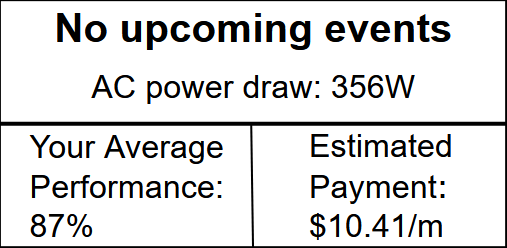
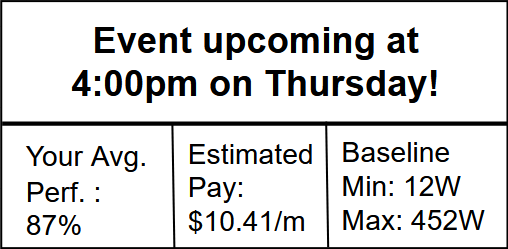
Button
The button on the front of the controller will allow you to opt out of events in 1-hour increments. During an event, press the button once to opt out. To rejoin the event, hold the button for at least 2 seconds.
Additional button functions: Holding the button for at least 10 seconds at anytime will trigger a software update. Ideally, users will never need to do this.
Battery
Be sure to keep the battery plugged in and the AC outlet on. The power button and the AC button on the face of the device should be lit up.Using the battery
You are free to plug anything you want into the battery. Note that prior to an event, the system may turn off the battery outlets to ensure it is fully charged for an event. During an event, the battery will disconnect from the grid but the outlets will be turned on.
Smart Plugs
There are 3 smart plugs in the system. The most important plug is the one the AC is plugged in to. Additionally, the battery charging cable is connected to one to help manage battery charging. The third one is used on the outlets of the battery itself.Troubleshooting
The outlets on the battery aren't working
Be sure to keep the outlets turned on. The AC button the device should be glowing green. If not, press it to turn it on.
The screen is flashing
This device uses an eink display that needs to refresh periodically.